YouTube to SRT: Download Subtitles and Check the Timing
Download YouTube captions as an SRT file. Follow the ZIP export steps, inspect a two-cue example and check subtitle timing against the original video.
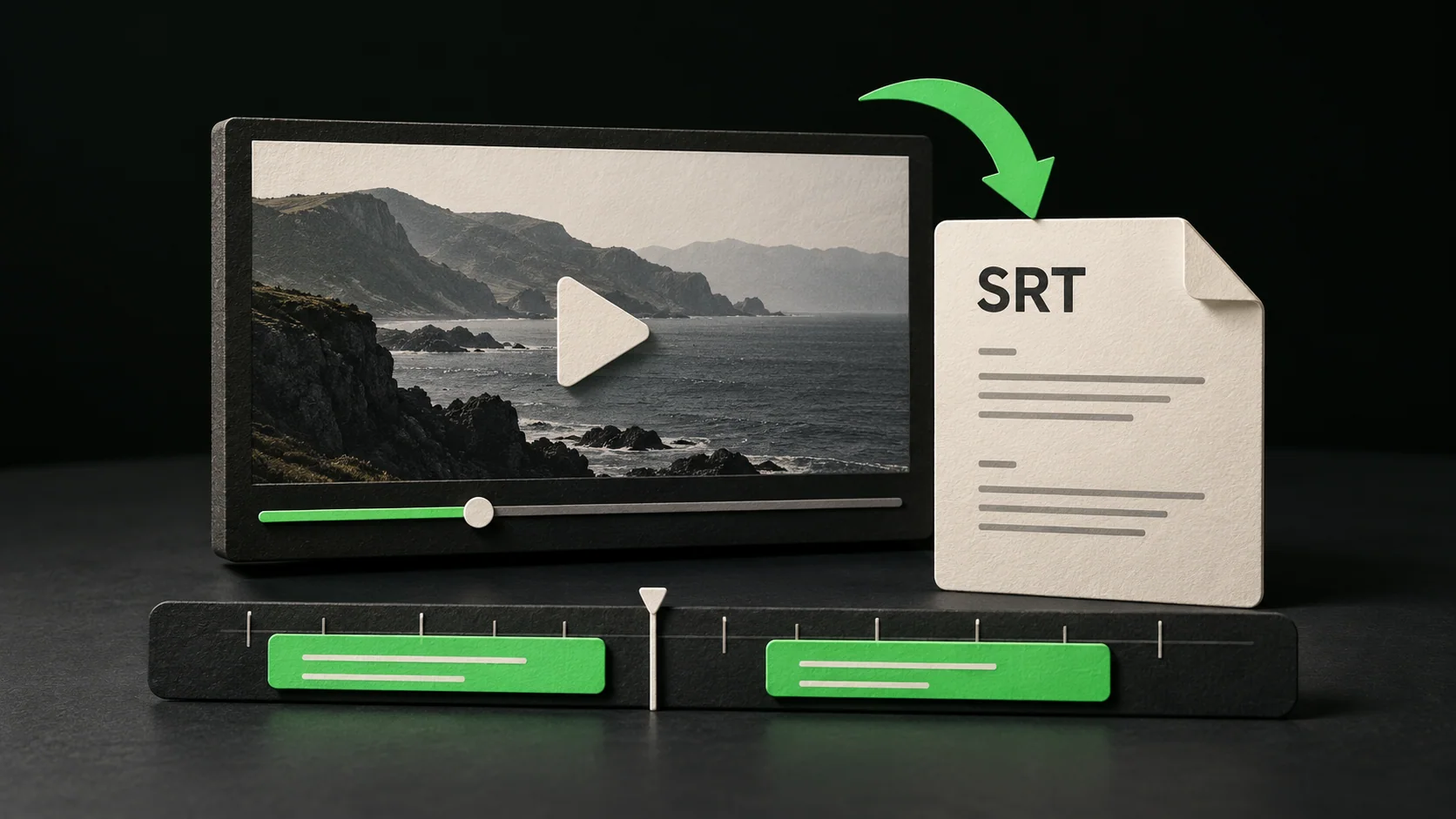
Use a YouTube to SRT workflow when you need a subtitle track with cue times. SRT stores each line with a number, a start time and an end time. A readable transcript alone does not provide that structure.
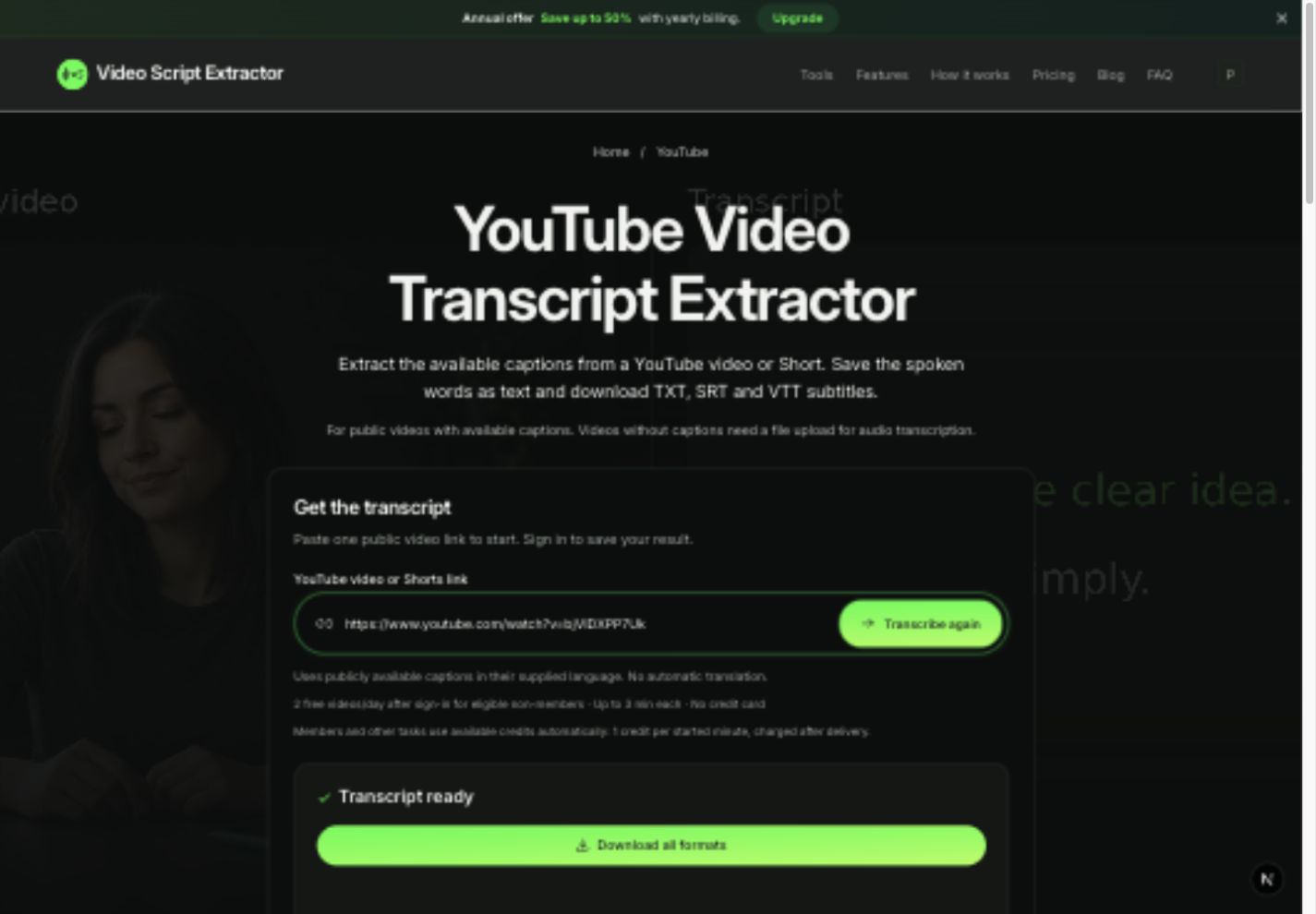
Video Script Extractor exports an available caption track from a single public YouTube video or Short. The download keeps its original language. This guide focuses on choosing the SRT file and checking it against the video you intend to edit.
Choose SRT, TXT or VTT
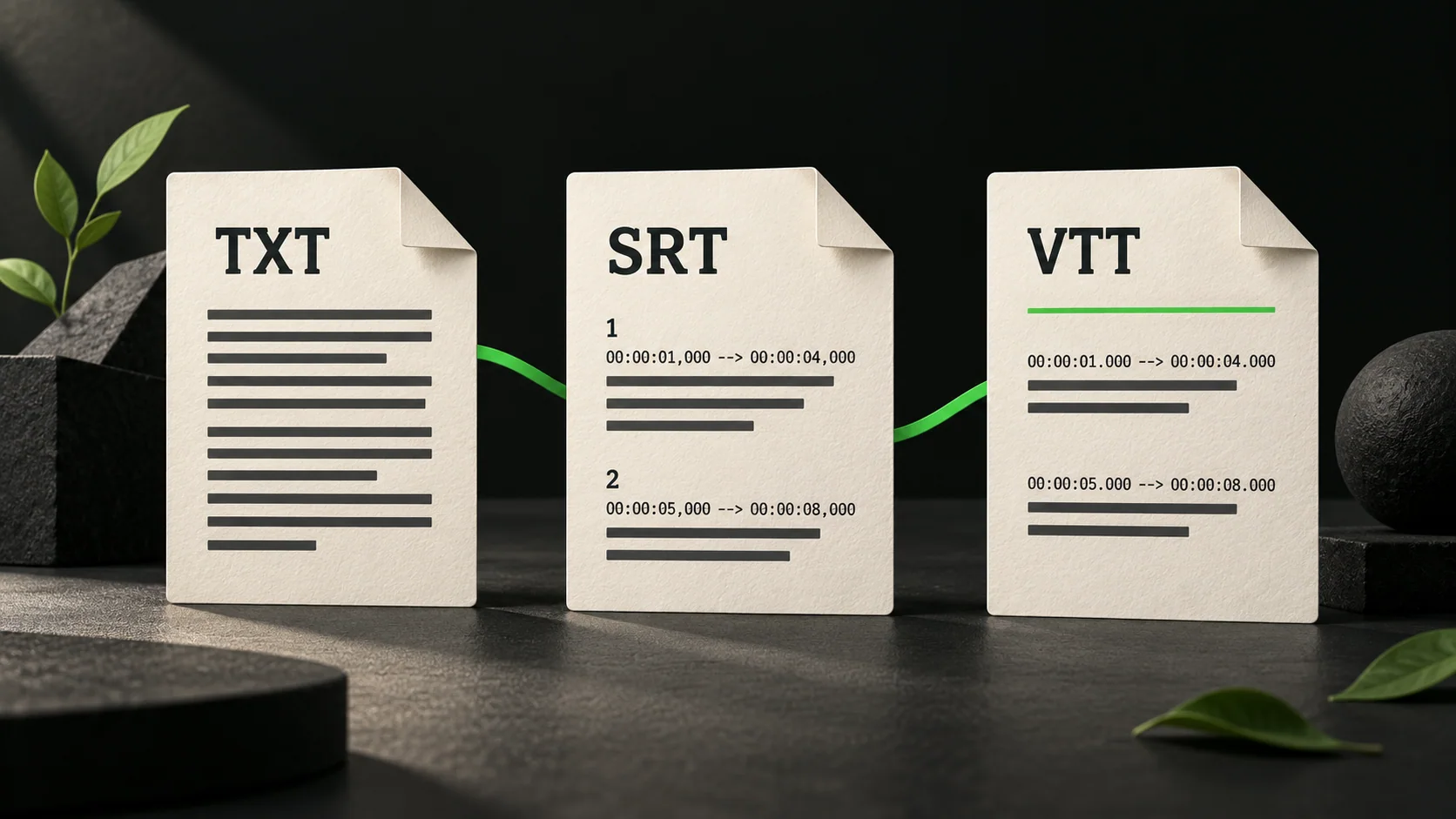
Download all formats packages three text files in one ZIP. SRT contains numbered subtitle cues with start and end times. Use it when your editor or destination accepts an SRT track.
TXT contains the words without timestamps, which suits reading and notes. VTT includes a WEBVTT header and timed cues for compatible web players. Check the accepted format in your destination before importing a file. The transcript ZIP contains no video footage.
Download YouTube subtitles as SRT
Keep the original video available so you can compare the downloaded subtitles with its audio.
- Copy one public watch URL, youtu.be share link or Shorts link. Use the individual video, rather than a playlist or channel page.
- Open the YouTube transcript tool, sign in and paste the URL.
- Select Get transcript and wait for the caption retrieval task to finish.
- Find the Ready task in Transcripts and select Download all formats.
- Unzip the download and select the .srt file. Keep the .txt and .vtt versions if they are useful for another task.
Read a two-cue SRT example
This is an illustrative example, not output from a tested video. Each block contains a cue number, two times separated by an arrow and the subtitle text. SRT uses a comma before milliseconds. A blank line separates the blocks.
1
00:00:01,240 --> 00:00:04,080
Welcome back to our weekly production breakdown.

2
00:00:04,160 --> 00:00:07,520
Today we are looking at timeline pacing and lighting setups.
Check timing against the original full video
Start with the same full video version as the source link. A caption cue at 00:02:10,000 refers to that position in the source timeline. If you cut out the first two minutes, the downloaded times will need adjustment for the shorter clip.
Play the beginning, middle and end with the subtitle track. Check whether each line appears with the intended speech and stays visible long enough to read. Check names, numbers and punctuation as well. A timecode written to milliseconds does not guarantee that the source caption was accurate.
Correct wording or timing in your own text or video editor. After trimming or rearranging footage, check the cues again. The link tool retrieves captions; it does not automatically synchronize them to a new edit or translate their wording.
If the YouTube video has no captions
The YouTube link tool requires an available caption track. It does not automatically switch to speech recognition when captions are missing.
If you own the recording or have permission to process it and already have a local copy, upload an MP4 or WebM file up to 25 MB through the video transcription tool. This generates a transcript from spoken audio with TXT, SRT and VTT exports. Check the generated words and timing against the uploaded file.
Check your allowance before starting
The free plan includes 2 successful video transcriptions daily after sign-in, up to 3 minutes each, shared across platforms and uploads. Active members use membership credits. Longer videos or tasks beyond the allowance require an applicable paid balance at 1 credit per started minute. Failed tasks are not charged, and re-downloading a ready result uses no extra processing credits.